

AI for architects is changing how presentations get built. It generates concept visuals from a sketch, renders real geometry, and drafts the slide narrative. Then it auto-assembles the deck.
AI tools for architects have gone mainstream. Deltek’s 2025 Clarity study puts adoption at 53% of architecture and engineering firms, up from 38% a year earlier. What once took days of rendering and layout now takes hours.
This guide walks through a repeatable five-step workflow for your next AI architecture presentation. It also includes a practical checklist to keep every presentation accurate, polished, and on brand.
Table of Contents
What “Client-Ready” Means When You Add AI for Architects
Why AI Makes Client Presentations Faster
How to Build a Client-Ready Presentation with AI (Step by Step)
Step 1. Generate Concept Visuals from a Sketch or Brief
Step 2. Turn Real Geometry into Polished Renders
Step 3. Draft the Slide Narrative and Talk Track
Step 4. Assemble and Polish the Deck
Step 5. Iterate Live in the Client Meeting
Your Client-Ready Checklist (Before You Present)
What “Client-Ready” Means When You Add AI for Architects
A client-ready presentation is one clients can follow, trust, and act on without a translator. That means accurate visuals that match the real design, and a clear story that moves from problem to proposal. It also means consistent firm branding, plus enough flexibility to edit on the spot when questions arise.
AI for architects helps with two separate jobs here, and it pays to keep them apart. AI rendering tools create concept images and photorealistic views. AI presentation tools build the deck, including its layout, copy, and structure.
Most guides focus only on the visuals. You need both to deliver a polished presentation with confidence.
The same shift is already transforming industries beyond architecture, from AI in healthcare to logistics. Essentially, once a field’s tools mature, adoption spreads fast.
| In short: Client-ready means accurate, clear, on-brand, and easy to edit. AI speeds up both the visuals and the presentation deck. |
Why AI Makes Client Presentations Faster
AI speeds up client presentations by automating the tasks that usually take the most time. This includes making concept images, updating renders, arranging slides, and writing speaker notes.
Revisions are often the most time-consuming part.
The 2024-25 Chaos and Architizer visualization survey found that 85% of architects often get requests to revise still-image renders. With AI, you can create new views in minutes, instead of waiting overnight. This helps keep feedback moving and avoids project delays.
The productivity gains AI helps realize aren’t restricted to architecture. A 2024 St. Louis Fed survey found that AI users save about 2.2 hours each week. Here’s what that means for a typical client presentation workflow:
| Presentation stage | Typical manual time | With AI assist |
| Concept visuals | Half a day to a day | Minutes to an hour |
| Render revisions | Overnight per round | Minutes per round |
| Slide copy and notes | 2 to 3 hours | 30 to 45 minutes |
| Deck layout and formatting | 2 to 4 hours | Under an hour |
| In short: AI speeds up the four slowest stages of a presentation. That turns overnight render cycles into edits you can make during the meeting. |
How to Build a Client-Ready Presentation with AI (Step by Step)
AI for architects works best as a repeatable workflow. Here’s how architects use AI across five steps, from the first sketch to the live client meeting.
Step 1. Generate Concept Visuals from a Sketch or Brief
You can start by using a text-to-image tool to turn your sketch or written brief into concept images. This gives clients something to respond to early, before you spend hours drilling down on details.
Tools like Midjourney, DALL-E, or Adobe Firefly work well for exploring mood and massing, even on innovative skyscraper designs.
Consider a prompt like “low-rise timber office, warm afternoon light, birch cladding.” It captures material and mood without needing a finished model, as shown in this Microsoft Copilot example.
Image via Microsoft Copilot
To get the most from this step:
- Describe materials, massing, light, and setting in the prompt
- Generate several variations and keep the two or three that match the brief
- Treat the outputs as concept only, not construction-accurate
Step 2. Turn Real Geometry into Polished Renders
Next, render your actual model to make sure every visual matches the real design. Avoid relying solely on a generic AI interpretation.
Import your plan, elevation, or model export into an image-to-image or architectural rendering tool. Then, upscale the output to make it clearer. Before you share renders with clients:
- Base every client-facing render on your model instead of a text prompt alone
- Use AI upscaling to sharpen materials, lighting, and overall clarity
- Check that the AI hasn’t invented windows, floors, or other architectural elements
Step 3. Draft the Slide Narrative and Talk Track
Next, focus on building the story. Even strong visuals can leave clients confused if there isn’t a clear narrative.
Use an AI assistant like ChatGPT to outline your deck, improve slide text, and draft speaker notes. It can also suggest questions clients might ask. Remember to use your own judgment, since you know the project better than the AI.
To turn your outline into a full draft:
- Ask for a slide-by-slide outline built around the client’s priorities
- Draft concise on-slide copy, then write longer speaker notes separately
- Generate a short Q&A prep list before the meeting
Step 4. Assemble and Polish the Deck
Bring everything together into a clean, on-brand deck using an AI layout tool. This is the step where your rough slides become a real presentation.
Tools like Gamma, Beautiful.ai, Tome, and Pitch can automatically organize your content. You can also use AI text effects from Adobe Express to polish section titles and cover text.
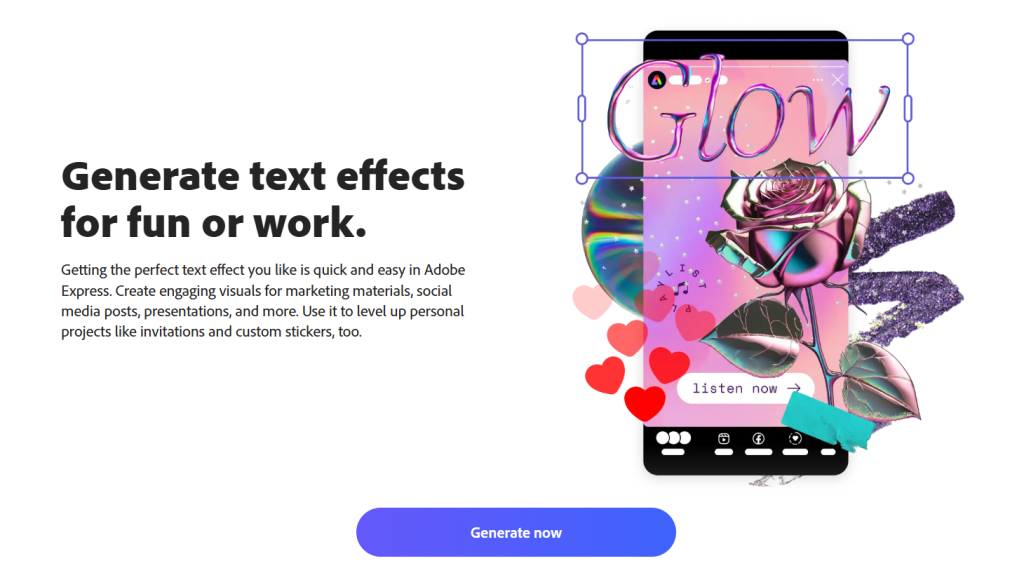
Image via Adobe Express
Of course, you want to use your firm’s fonts and colors so your presentations look consistent and ready for clients. To finish the deck efficiently:
- Drop in your renders, copy, and notes, then let the tool lay out the slides
- Apply your brand palette and type once, then reuse it as a template
- Polish headline and cover text so key slides read cleanly
Step 5. Iterate Live in the Client Meeting
Finally, consider using AI to make real-time edits during client meetings. Doing so can help you quickly update materials and regenerate views. AI can also refine headlines without slowing down the conversation.
Being able to respond quickly, just like designing for live audiences, makes your presentation feel truly client-ready. To keep the meeting moving:
- Keep your generation tool open during the meeting
- Regenerate one variation live rather than promising a follow-up
- Log every change so the deck stays current after the call
| In short: Turn a sketch or brief into quick concept visualsRender your real geometry so visuals match the actual designDraft the slide narrative, copy, and speaker notes with AIAssemble and brand the deck with an AI layout toolEdit live in the meeting so feedback closes in the room |
Your Client-Ready Checklist (Before You Present)
Do a final review before presenting to ensure your deck is client-ready. While AI speeds up many steps, a last check ensures accuracy, credibility, and client trust.
Here’s why a human review matters. Gartner’s 2025 forecast predicts that by 2030, 75% of B2B buyers will prefer working with real people rather than AI. So even if AI builds the deck, clients still want to work with someone they trust.
Confirm the following before you present:
- Accuracy: Every visual reflects the real design, with no AI-invented details
- Grounding: Base every render on your plans or model, not a prompt alone
- Branding: Fonts, colors, and layout match your firm’s visual identity
- Editability: Make sure you can adjust your presentation on the go if needed
- Disclosure: Tell clients where AI was used, especially on concept imagery
- Originality: Confirm the generated visuals and copy are yours to use
| In short: A client-ready deck is accurate and grounded in the real design. It’s also on-brand, editable, and transparent about where AI helped. |
Frequently Asked Questions
Q. Can architects use AI to make client presentations?
A. Yes, architects can use AI. It helps create concept visuals, render real geometry, write presentation narratives, assemble slide decks, and support live edits during meetings. Used together, those five steps can cut a multi-day process to a few hours, while keeping the work accurate.
The bottom line is that AI for architects works best as a full workflow, not a single tool.
Q. What is the difference between AI renderings and AI presentations?
A. AI renderings create the visuals, while an AI architecture presentation brings those visuals into a structured client story. Rendering tools generate concept images and photorealistic views. Presentation tools organize them with layouts, copy, and speaker notes.
In short, renders show the design, presentation tools tell its story.
Q. What is the best AI tool for architecture client presentations?
A. The best AI tools for architects depend on the stage of your workflow. For example, use Midjourney or Adobe Firefly for concepts, ChatGPT for the narrative, and Gamma or Beautiful.ai for layout. Pick one per stage and keep it consistent across projects.
The takeaway is that the best AI presentation for architects combines specialized tools rather than relying on one platform.
Q. How much time can AI actually save on a presentation?
A. Most architects can expect to save several hours per presentation. The Federal Reserve Bank of St. Louis’ 2024 survey found that AI users save an average of 2.2 hours each week. In architecture, the biggest gains usually come from faster render revisions and quicker slide production.
Essentially, expect steady time savings, not a dramatic shortcut.
Q. Is there a free AI presentation or rendering generator?
A. Yes. A number of AI tools for architects offer free plans for image generation, rendering, or presentation design. These usually limit exports, resolution, or advanced features. Free tiers work well for testing ideas before upgrading for client-ready deliverables.
The bottom line is that free tiers are fine for drafts, but client-ready work usually needs a paid plan.
Q. What should architects avoid when using AI visuals with clients?
A. Avoid presenting AI-generated concepts as final designs. Don’t promise photorealistic results your project cannot deliver, and don’t hide where AI contributed. Always compare generated visuals with your plans and clearly label concept imagery.
The takeaway is to treat AI presentation tools for architects as a tool for speed, without misrepresenting the design.
The Takeaway
AI for architects helps you move from sketch to client-ready presentation in hours, not days. It handles the visuals, narrative, and deck, while you stay in control of accuracy and story.
Run the five steps, then the checklist. Your next pitch will look sharper and land faster.
As these tools keep improving, the architects who build a repeatable workflow today will walk into every meeting steps ahead.
In short, build the visuals, tell the story, assemble the deck, and check for accuracy. AI turns a days-long pitch into a same-day, client-ready one.